Competitor Research Template That Fills Itself In
Updated Nov 15, 2026
A good competitor research template is a sheet with one row per competitor and one column per fact you want to compare: who they serve, what they charge, how their pricing has changed, what ads they're running and what customers complain about. Copy the template below into any spreadsheet. Then work through the checklist of three free signals most templates leave out, and add a "checked on" date to every row so you can tell when a fact has gone stale.
Most templates you'll find are slide decks or SWOT grids. They show you how to present research you've already done. This one is for gathering it: where each fact comes from, and how often it changes.
The competitor research template to copy
Make one row per competitor. Fill these columns from left to right, because the first few shape what you look for in the rest.
| Column | What goes in it | Where to find it |
|---|---|---|
| Competitor | Product name and website | Your own list, plus "alternatives to X" searches |
| Who it's for | The customer they name on their homepage, in their words | Homepage headline and subhead |
| Pricing page | The URL itself | Their site |
| Entry price and plans | Cheapest paid plan, tier names, what's gated to the top tier | Pricing page |
| Last pricing change | When the page last changed, and what moved | Wayback Machine snapshots of the pricing page |
| What reviewers dislike | The complaint that comes up most | Review sites and forums |
| Ads running now | What they're saying in paid ads this week | Meta Ad Library |
| Ad landing page | Where those ads send people | Meta Ad Library |
| Search interest | Their brand's search interest compared with yours | Google Trends |
| Checked on | The date you filled the row | You |
Two columns do more work than they look like they do. "Who it's for" stops you from comparing yourself to a product that sells to a different buyer. "Checked on" is what makes the sheet something you can trust. A price without a date is a guess six weeks later.
The checklist: three free signals the usual templates skip
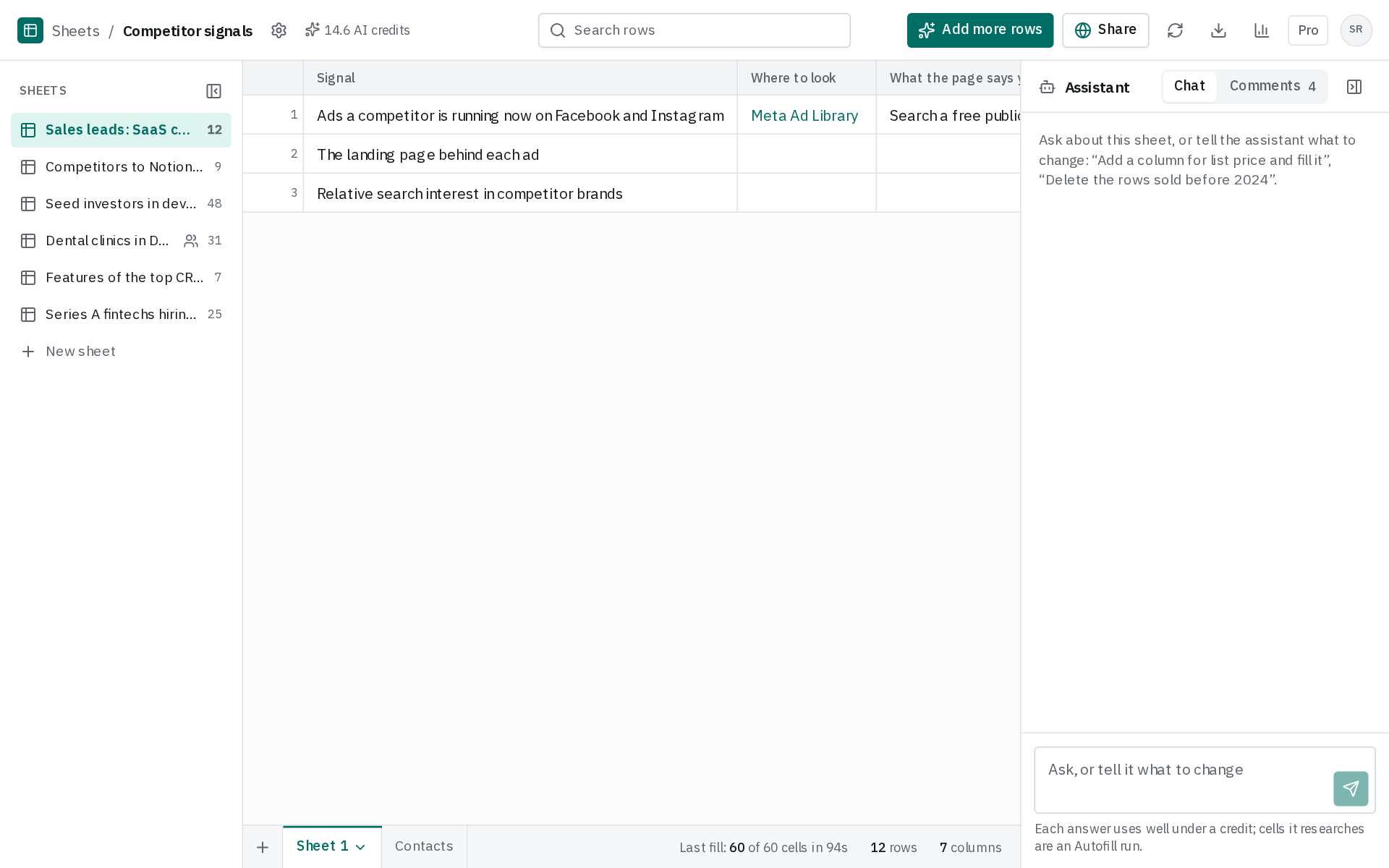
The static columns (product, plans, price) are in every template. The columns that tell you what a competitor is doing right now usually aren't. Here are three you can check for free, with what each source says it can do:
- ☐ Ads a competitor is running now on Facebook and Instagram — Where to look: Meta Ad Library; What the page says you can do: Search a free public database of active ads by advertiser name, keyword or location (mida.so)
- ☐ Landing page each competitor ad sends people to — Where to look: Meta Ad Library; What the page says you can do: See the landing page URL behind an ad's call-to-action button (mida.so)
- ☐ Relative search interest in competitor brands — Where to look: Google Trends; What the page says you can do: Compare up to 8 groups of terms at once, up to 50 terms per group; Limit to know: No results for misspellings, synonyms, or plural/singular variants (support.google.com)
Checked November 15, 2026, from each item's own page.
Add one column per competitor and tick each signal off as you check it. Of the three signals, 2 don't publish a limit on their own page. That doesn't mean they have no limits. It means you find them out by using the tool.
The Meta Ad Library is the clearest example. The page above calls it a free public database of active ads, which matters more than it sounds. SOMIN's guide explains that outside the EU and UK, a commercial ad shows its creative, Page and start date, but no spend, reach or targeting. It also drops out of the library once it stops running. So if you check once a quarter, you only see the ads running that week. Everything they tested in between is gone. That's the strongest reason to re-check on a schedule.
Google Trends does publish its limits. Per Google's help page, you can compare up to 8 groups of terms at once. It won't return results for misspellings, synonyms, or singular and plural variants. If a competitor's brand is often misspelled, a plain term search will undercount it. The same page explains that topics group terms sharing one concept across languages, so pick the topic version of a brand when Trends offers one.
How to fill in the template, step by step
1. Pick the rows before the columns
List your direct competitors first. Then add the thing buyers use when they use none of you, whether that's a spreadsheet, an agency or doing nothing. That last row often explains your lost deals better than any rival does.
2. Fill the pricing columns from history, not just today's page
Today's pricing page tells you the price. Its history tells you the strategy. Cotera's guide to tracking pricing changes suggests typing a competitor's pricing URL into the Wayback Machine and scrolling the calendar. Look for renamed tiers, features moved between tiers, and tiers that appeared or disappeared. Moving a feature up a tier while the headline price stays the same is a quiet price increase, and you'll only spot it by comparing snapshots.
3. Search ads by Page, not by keyword
In the Meta Ad Library, search for the competitor's Page name. SOMIN notes that a keyword search also returns other Pages' ads that use the term. That muddies a per-competitor row. Write down the message and the landing page, not just a count. SOMIN also found one advertiser's 187 Meta ads had only 55 distinct primary texts, so raw ad counts can mislead. We did this ourselves this month: before trying new ad images for Autofill, we went through competitors' ads, and the landing pages told us more than the ad copy did.
4. Date every row
Put the date in "Checked on" when you finish a row, not when you finish the sheet. Then you'll know which row is oldest when you come back.
How often to update a competitor research template
Re-check ads and search interest every week or two, and pricing at least monthly. Ads are the most fragile column, for the reason above: outside the EU and UK, an ad that stops running drops out of the library. Pricing changes are quieter but cost more to miss. Cotera's founder describes a competitor that dropped its starter plan without any announcement. His team found out eleven days later from a prospect, after deals were already affected.
The "who it's for" and "what reviewers dislike" columns move slowly. Refresh them before a launch or a pricing change of your own.
Mistakes that make competitor research go stale
- One snapshot, treated as the truth. A sheet filled once is a photo. Ads disappear and prices move, so add a date to every fact.
- Comparing to the wrong competitors. If their homepage names a different buyer, they belong in a "watch" tab, not your main comparison.
- Counting ads instead of reading them. Fifty versions of one message is still one message.
- Trends terms that miss the brand. A plain term search skips misspellings and variants, so use the topic when Trends offers one.
Doing this in Autofill
Autofill builds this kind of sheet from one sentence. Type something like "Competitors of our invoicing app, with pricing pages." It proposes columns such as product, price, plans, who it's for, what reviewers dislike and pricing page, then researches each row on the web and fills in the cells. It can also find the competitors themselves when you create the sheet, so you don't start from a blank list. The paid plans earn their keep on the upkeep. A sheet can refresh on a schedule so new rows land on their own, and you can turn a filled sheet into a chart or a written report, share it with a read-only link, or download it as CSV or Excel. There's more on this use case on the competitor scans page.
Where it stops: it's a research sheet, not a price-change alert service or an ad-monitoring tool, and it won't replace reading a competitor's ads yourself. AI-filled cells can be wrong, so spot-check any number you plan to act on, especially prices. If you only need to compare two competitors once, the free template above is all you need.
To learn more about the approach, see how an AI table generator turns a prompt into a filled sheet or how to enrich a company list with AI.
Questions
Is there a free competitor research template for Google Sheets?
Yes. Copy the column table above into Google Sheets, Excel or any spreadsheet. The columns matter more than the tool, especially "Checked on."
What's the difference between competitor research and a competitive analysis?
Research is gathering the facts: prices, plans, ads, reviews. Analysis is what you conclude from them, such as a SWOT or positioning map. This template covers the research, which is the part most analysis templates assume you've already done.
Can I see how much a competitor spends on Facebook ads?
Usually not. For commercial ads outside the EU and UK, the Meta Ad Library shows the creative, the Page and the start date, but no spend or reach.